Obtaining a Passport Token
The reference cloud leverages the GA4GH Passports specification to handle researcher permissions and dataset access. Whenever a data steward approves your data access request, an object called a Visa is added to your identity/profile, granting you access to that particular dataset. Your Passport is therefore the collection of visas associated with your identity, representing your full set of access grants for the reference cloud.
But how do you actually use your Passport to request data from the reference cloud?
On the reference cloud platform, navigate to the View Passport Token page. When you visit this page, the reference cloud will mint a new Passport JSON Web Token (JWT), which will allow you to obtain data from the data access APIs.
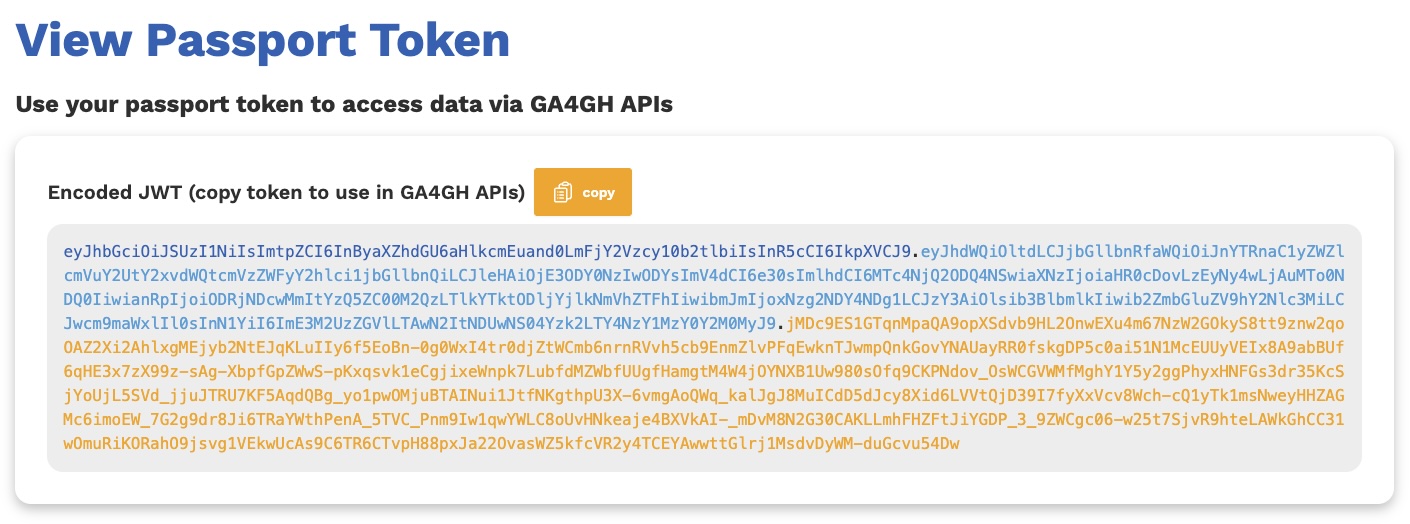
In the above image, you will notice that the JWT has 3 distinct components, each with their own color and separated by periods. The components of the JWT are:
- The header, indicating the algorithm that was used to sign the token
- The payload, containing most of the information about who the token was created for and how it can be used
- The signature, which prevents token tampering and forgery
When a request is made to a data access API, the reference cloud evaluates the token's validity through the following checks:
- the signature is verified
- the token has been issued by a trusted party (the reference cloud trusts only itself)
- the token is not expired
- the subject (researcher) that the token was created for has permission to access the underlying dataset
If the token passes all of these internal checks, data will be returned to the researcher.
Using your Passport Token
To use your passport token, simply click the copy button to copy it to your clipboard. You may then use it when requesting data from any GA4GH data access API, by providing it in the manner required by that API. This will be explored further in the interactive demos, but for now, let's move on to Exploring Datasets and data objects via the user interface.