Exploring Datasets
You can now use the user interface to browse and inspect data objects from the datasets that you have access to. First, navigate to the DRS page and select a dataset from the dropdown menu.
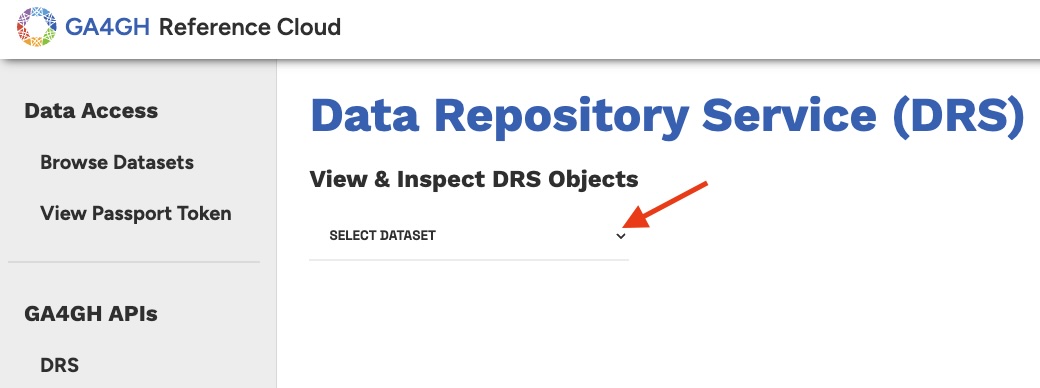
After selecting a dataset, a table will load displaying DRS Object IDs for DRS Objects within that dataset. You can paginate through the list of results as well as adjust the number of results per page.
Note: DRS stands for Data Repository Service, which is a GA4GH API specification for obtaining data objects. You can think of a DRS Object as containing basic metadata about a file (name, size, checksum, etc), as well as access methods to obtaining the raw file content.
Each row represents a DRS Object Manifest, which is a logical grouping of multiple related files (for example, a BAM file and its associated index, or all files derived from the same individual).
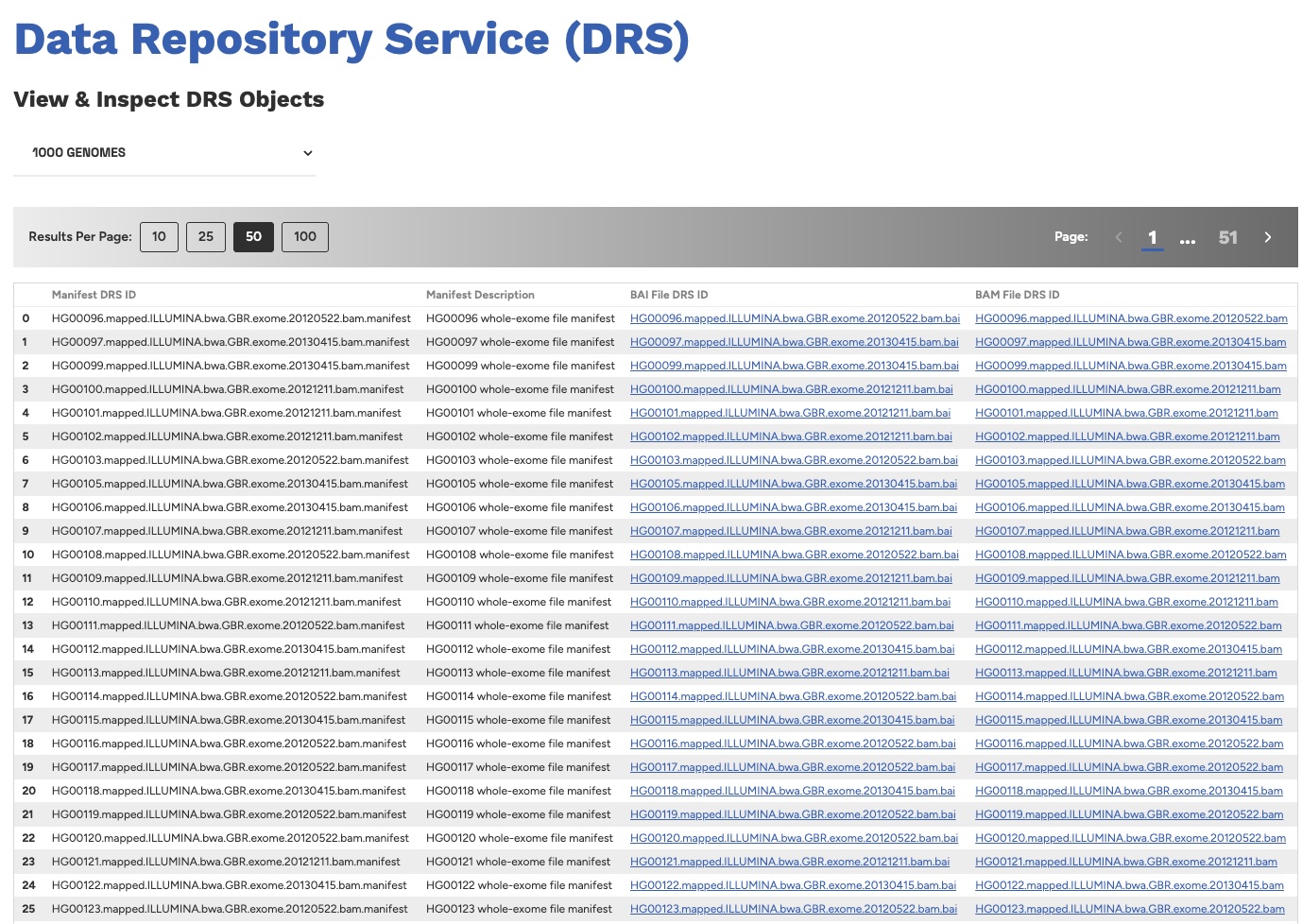
Click on a DRS Object ID to inspect its metadata. You can even click the Download button to download the raw data to your local machine!
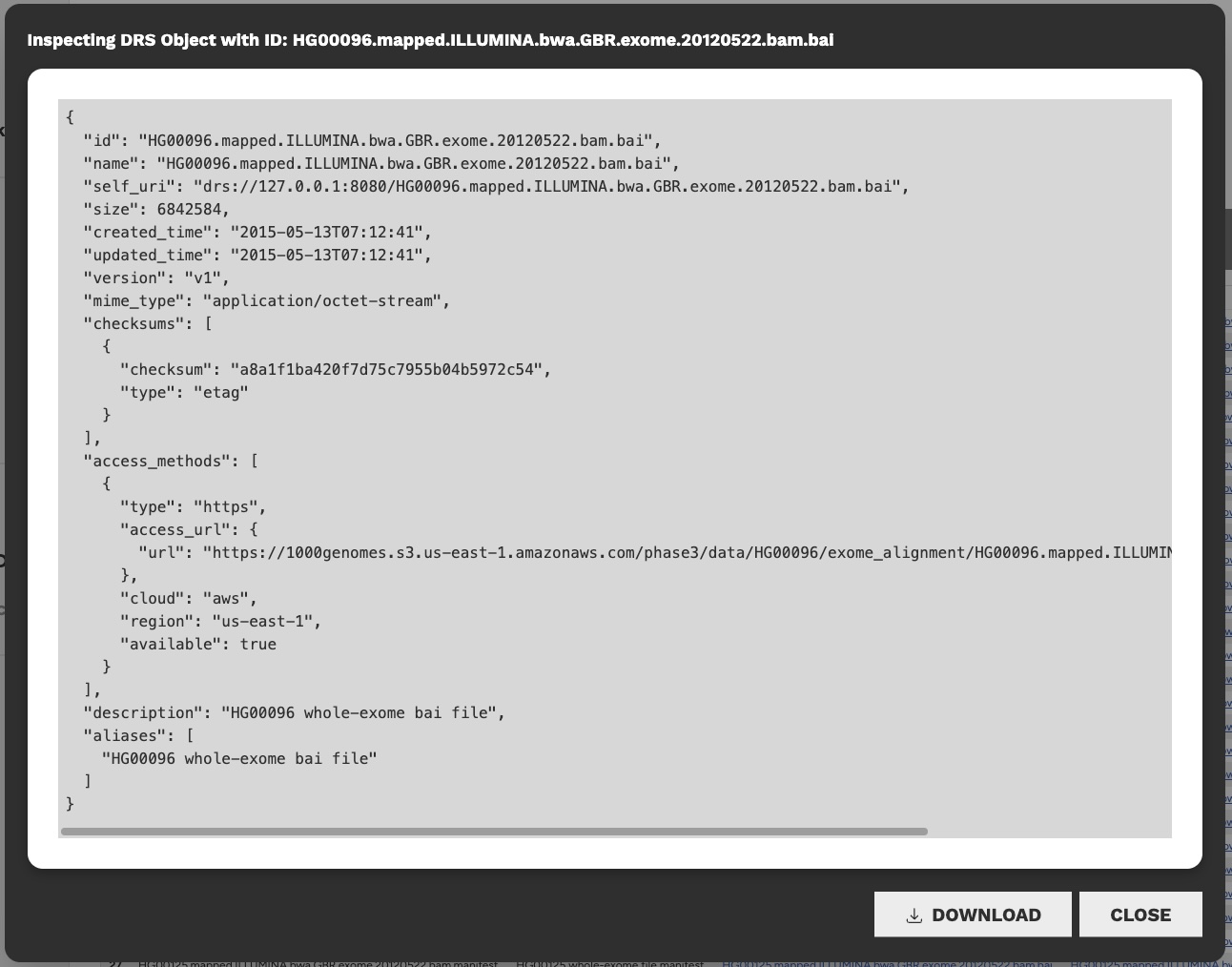
Note: DRS Object Manifests cannot be inspected or downloaded, as they only contain references to the individual DRS Objects within the group.
You may be wondering, "How can I access these data objects if I haven't supplied my passport token?" In the user interface, your passport token is minted and provided to the data access API automatically!
Next Steps
Congratulations! You have now completed the basic tutorial for the GA4GH Reference Cloud. You have a good understanding of the core concepts around identity, authorization, and data access within a standardized GA4GH framework.
Next, we encourage you to take a deeper dive into our interactive demos section, where you can follow along with end-to-end use cases that simulate real researcher workflows. You will move beyond the basic user interface and query GA4GH APIs directly, allowing you to perform more sophisticated requests and operations.